How to Create a WiFi QR Code (Free & Instant)
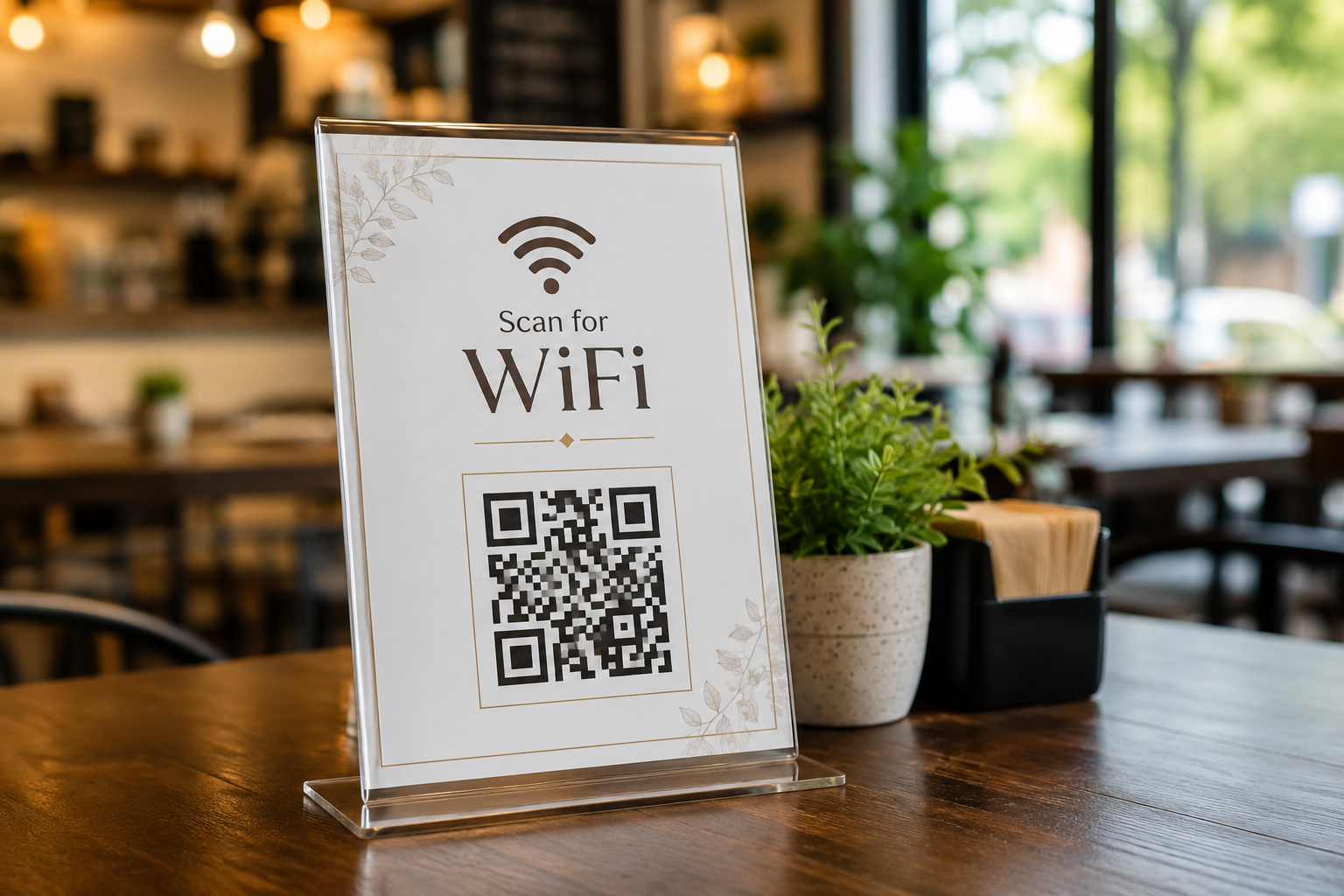
Why Every Business Needs a WiFi QR Code
Typing a long, case-sensitive WiFi password on a phone keyboard is a small but real source of friction for guests. A WiFi QR code removes that friction entirely: guests scan, tap connect, and they're online — no password typing, no misheard letters, no staff interruptions.
How WiFi QR Codes Work
A WiFi QR code encodes your network name (SSID), password, and security type (usually WPA/WPA2) directly into the code. When scanned with a modern phone camera, the device recognizes it as a WiFi network and prompts the user to connect — no app required.
Where to Use a WiFi QR Code
- Restaurants and cafes — print it on table tents or receipts
- Offices — post it at reception for visiting clients
- Guest rooms and Airbnbs — a laminated card by the bed saves guests the "what's the WiFi?" text
- Waiting rooms — clinics, salons, and auto shops keep customers connected while they wait
Security Note
A WiFi QR code is only as secure as your network. Anyone who scans it gets your password, so for a guest network, consider using a separate SSID isolated from your main business network rather than sharing your primary WiFi credentials.
How to Create One
- Select "WiFi" as your QR code type
- Enter your network name (SSID) and password
- Choose your security type (WPA/WPA2 is standard)
- Customize the design and download for print